
‘Tile Properties’ is an API plugin made for Unity 6, made to allow level designers and programmers to store and configure custom metadata for large lists of tiles in a 2D Tilemap! Inspired by similar features seen in Godot and Tiled, the plugin expands on Unity’s default “2D Tilemap” package without overwriting any of the package’s own scripts, and can be installed in any pre-existing game projects without conflicts emerging.
Features:
- Expandable lists of "tile property" variables that can be applied to large lists of tiles at once
- Numerous base C#/Unity variable types supported out of the box
- A variety of tools and functions to access these tile properties through the inspector and through code as well
- Integrated inspector tools and gizmo-based displays for debugging
Download:
- GitHub
- Unity Asset Store (coming soon!)
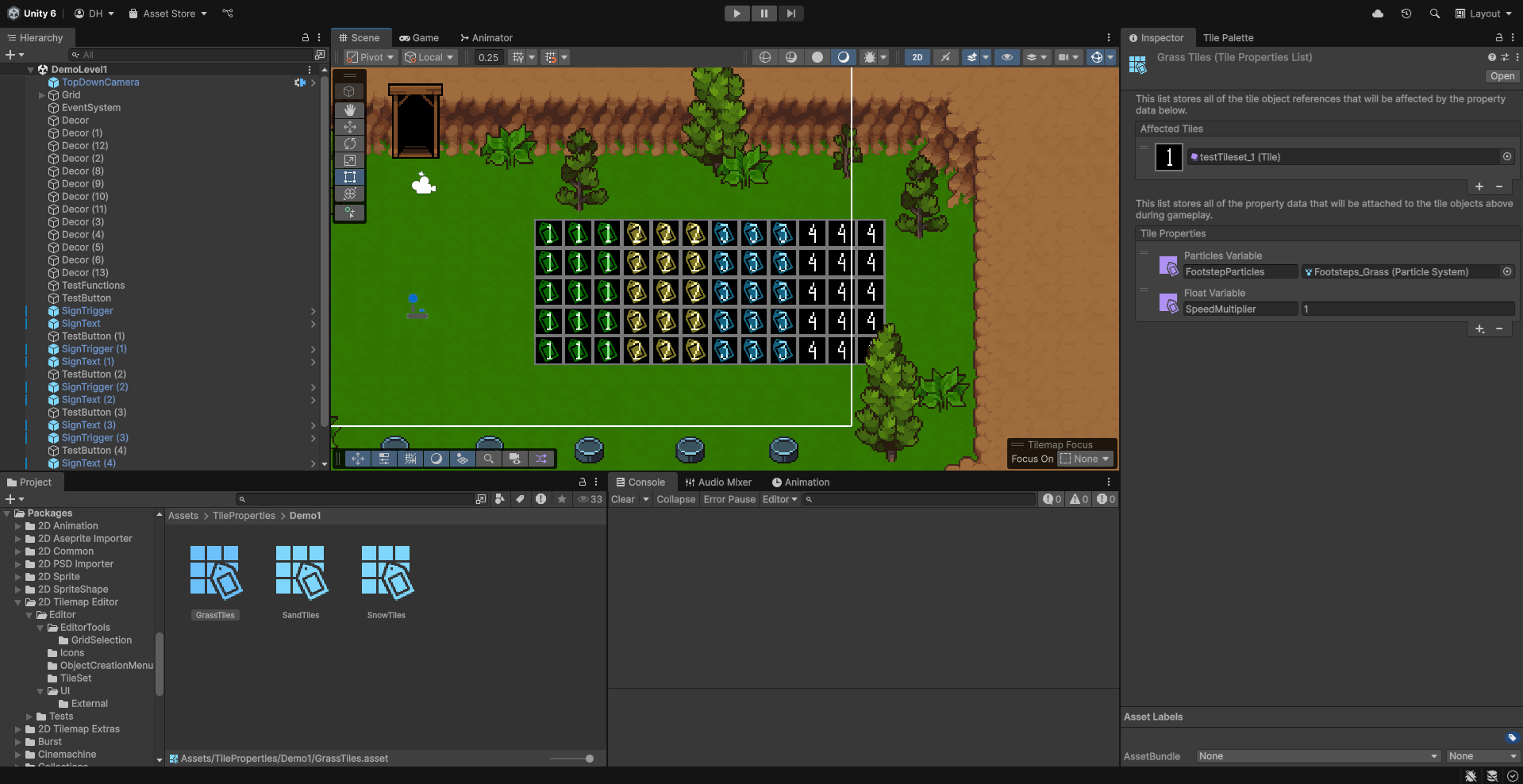
Recommended Usage:
The 'Tile Properties' plugin can be installed in a fresh 2D Unity project, or installed in an already-existing project that uses Tilemaps. Tile properties can be accessed and changed in code through the 'TilePropertiesManager' singleton object, where an array of built-in functions can be used. Tile property lists themselves are stored as ScriptableObjects that keep track of different variable types, as well as references to 'TileBase' objects for the tiles that are actually going to be affected by the property data.
How to create a new Tile Property List:
- Click the '+' icon in the 'Project' window
- Open '2D > 'Tile Property List'
- - If this is the first Tile Property List that's being created inside of the project, a 'Tile Property Settings' object will also be created. This ScriptableObject can be used to toggle gizmo displays on and off in the 'Scene' window for debugging purposes and to see which tiles in the level are actually being affected by tile properties.
How to use Tile Properties in a scene:
- Open your level scene of choice
- Click the '+' icon in the 'Hierarchy' window
- Click 'Create Empty'
- Parent the new "Tile Property Manager" object to the level's "Grid" object'
- - This would purely be for organisation purposes, so that the property manager is kept next to all of the other tile-map related objects in the scene
- Add the "TilePropertiesManager" component to the script and assign it the property lists that you want the scene to use
Example Code:
The following is a simple example of how Tile Property functions can be used to access and change basic properties:
public ParticleSystem GrassReplacementParticles;
public ParticleSystem SandReplacementParticles;
public TileBase NewSnowEffectTile;

private TilePropertiesManager current_tile_properties;

void Start()
{
    current_tile_properties = FindFirstObjectByType();
}

public void ChangeGrassTileProperty()
{
    current_tile_properties.SetTileProperty("GrassTiles", "FootstepParticles", SandReplacementParticles, true, true);
}

public void ChangeSandTileProperty()
{
    current_tile_properties.SetTileProperty("SandTiles", "FootstepParticles", GrassReplacementParticles, true, true);
}

public void ApplySnowTileProperty()
{
    current_tile_properties.AddAffectedTile(NewSnowEffectTile, "SnowTiles");
}

public void WipeSnowTileProperties()
{
    current_tile_properties.ClearAllAffectedTiles("SnowTiles");
}

public void WipeAllTileProperties()
{
    current_tile_properties.ClearTileProperties("GrassTiles");
    current_tile_properties.ClearTileProperties("SandTiles");
}
The following is an example of how Tile Properties could be used to generate random tiles in a rectangle area, based on probability values that are stored in Tile Property Lists:
public BoundsInt TileArea;
public string TilePropertyName;

private Tilemap tilemap;
private TilePropertiesManager tilePropertiesManager;

private void Awake()
{
    tilemap = GetComponent();
    tilePropertiesManager = GetComponent();
}

private void Start()
{
    GenerateTilesArea();
}

public void GenerateTilesArea()
{
    int tileCount = TileArea.size.x * TileArea.size.y * TileArea.size.z;
    List generatedTiles = new List(tileCount);

    while (generatedTiles.Count < tileCount)
    {
        int randomTileIndex = Random.Range(0, tilePropertiesManager.TilePropertyLists.Count);
        float random = Random.Range(0f, 1f);

        TileBase randomTile = tilePropertiesManager.TilePropertyLists[randomTileIndex].AffectedTiles[0];
        float randomTileSpawnChance = (float)tilePropertiesManager.GetTileProperty(
            randomTile,
            TilePropertyName,
            typeof(float), true, true);

        if (random < randomTileSpawnChance)
        {
            generatedTiles.Add(randomTile);
        }
    }

    tilemap.SetTilesBlock(TileArea, generatedTiles.ToArray());
}
- Generated on for Unity Tile Properties by
 1.16.1